Cell Types
A column declares its type, and the grid supplies the editor, the renderer and the keyboard behaviour that go with it.
Checkbox Columns (type: 'checkbox')
const grid = new JHGrid({
  container: '#grid',
  data: [
    { name: 'Ada',   active: true  },
    { name: 'Grace', active: false },
  ],
  editableCols: ['active'],
  columnDefs: [
    { field: 'name',   label: 'Name' },
    { field: 'active', label: 'Active', type: 'checkbox', width: 90 },
  ],
  onCellChange: ({ row, field, newValue }) => save(row, field, newValue === 'true'),
});
The cell is drawn as a box and counts as checked for true, 1, 'true', '1', 'Y' and 'yes'. Clicking it, or pressing Space / Enter / F2 on the selected cell, toggles it at once with no editor. Like any edit this needs the column to be editable, through editableCols or editable: true, and what it writes is the text 'true' or 'false', which is what getEdits(), onCellChange and getRowData() report (convert it with === 'true'). For a select-all box in the header see headerCheckbox.
Date Columns (type: 'date')
A date cell holds text, not a Date object. Every date column has a pattern: the format you give it, or the one its locale uses when you give none ('MM/DD/YYYY' under en, 'YYYY-MM-DD' under ko, 'YYYY/MM/DD' under ja and zh). format: 'locale' is the one case without a pattern:
With a pattern (format, or the locale’s) | format: 'locale' | |
|---|---|---|
| Cell shows | the value written in that pattern | the date the way Intl writes it for the grid’s locale (2024. 3. 1. under ko-KR) |
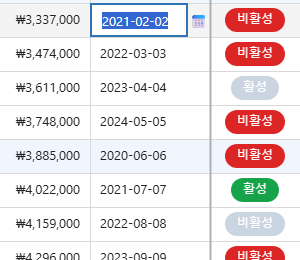
| Editor | a text box that inserts the separators as you type digits, with a calendar button that opens the native picker | the browser’s native date input |
| Saved as | text in that pattern, for example '25/01/02' | YYYY-MM-DD (YYYY-MM-DDTHH:mm with editorOptions: { mode: 'datetime-local' }) |
| Valid when | it matches the pattern, or is ISO text, and is a real date: month 1 to 12, a day that exists in that month (leap years included), hour and minute in range | it is ISO text |
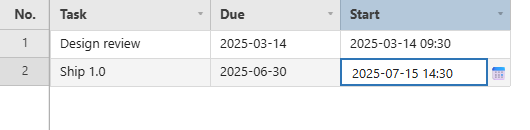
format is a pattern of YYYY, YY, MM, DD, HH, mm and ss; every other character is copied as it is. A pattern with a time part (HH, mm) gives the calendar button a date-and-time picker.
const grid = new JHGrid({
  container: '#grid',
  editableCols: '*',
  data: [
    { task: 'Design review', due: '2025-03-14', start: '2025-03-14 09:30' },
    { task: 'Ship 1.0',      due: '2025-06-30', start: '' },
  ],
  columnDefs: [
    { field: 'task',  label: 'Task', width: 160 },
    // No format: the locale's pattern (MM/DD/YYYY under en). min/max limit what the picker offers.
    { field: 'due',   label: 'Due',  type: 'date', width: 130,
      editorOptions: { min: '2025-01-01', max: '2025-12-31' } },
    // With a format: type 2025-03-14 0930 and it becomes 2025-03-14 09:30.
    { field: 'start', label: 'Start', type: 'date', format: 'YYYY-MM-DD HH:mm', width: 170 },
  ],
});
Things worth knowing:
- A value is read through the column’s pattern, or as ISO text - never guessed at.
'2024-03-01'shows as'24/03/01'underYY/MM/DD, and'14/03/2024'shows as'2024-03-14'underDD/MM/YYYY. A value that is neither -'03/01/2020'in aYYYY-MM-DDcolumn, where there is no telling the month from the day - is left exactly as it was loaded: shown, copied and exported as that same text, and marked invalid, rather than silently turned into another date. An ISO timestamp that names its zone ('2024-03-01T10:00:00Z') is read as an instant and shown in local time. - An ISO value is at home in any date column. It is read and displayed in the column’s pattern, the editor opens on it in that pattern, and it passes validation - so a server that sends ISO needs no translation layer. Opening such a cell and closing it without a change leaves the stored ISO text as it is; a date the user really types is saved in the column’s pattern, so a column fed both formats ends up holding both (which displays, sorts, copies and exports the same either way).
format: 'locale'shows the date the way the grid’slocaledoes (2024. 3. 1.forko-KR). That is not a pattern an input mask can be built from, so such a column edits with the native date picker and stores ISO text (2024-03-01); use a pattern when you want the typed, masked input.editorOptions.minandmaxare passed to the native input or calendar as itsmin/max. They limit the picker, not what can be typed; usevalidationto reject a typed value.validation.minandmaxread the value through the column’sformat, so they work forYY/MM/DDorDD.MM.YYYYas well as ISO text. A limit can be written in the same format or asYYYY-MM-DD(optionally followed byHH:mm). See Validation.- The date is copied, exported to CSV and printed as displayed, in
format.
Radio Columns (type: 'radio')
The same options list as a dropdown, drawn in the cell instead of behind a popup: one click picks, no editor opens. The cell holds the chosen option’s value, so the column is a text column to filters, getEdits() and a CSV export.
const grid = new JHGrid({
  container: '#grid',
  editableCols: '*',
  data: [
    { name: 'Ada',   stage: 'done' },
    { name: 'Grace', stage: 'todo' },
  ],
  columnDefs: [
    { field: 'name' },
    { field: 'stage', type: 'radio', width: 240,
      options: [{ value: 'todo', label: 'To do' }, { value: 'doing', label: 'Doing' }, { value: 'done', label: 'Done' }] },
  ],
});
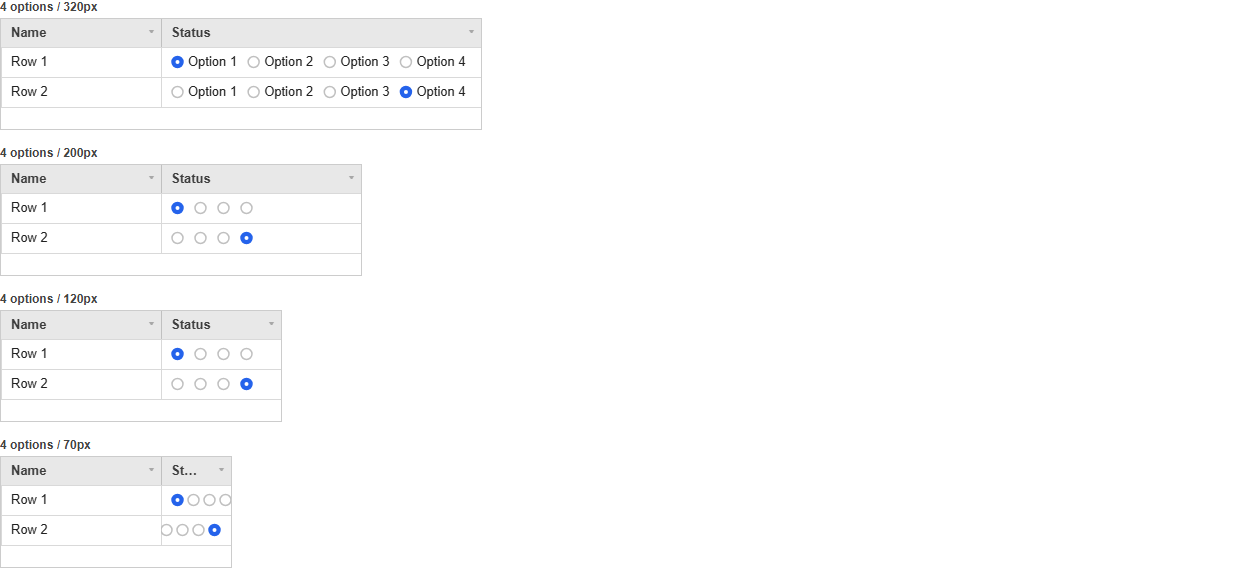
It always fits the column. Labels are drawn while they fit; when they do not, the circles alone are drawn; when even those do not fit, the gaps tighten and the row slides so the chosen option stays in view. Nothing is ever drawn outside the cell, whatever the width.
| Cell value | the chosen option’s value - exactly what a CSV export carries |
| Click | the circle (or its label) under the pointer; a click between them only moves the selection |
| Keyboard | Space moves to the next option and wraps. The arrows keep moving between cells |
| Read-only column | drawn the same, nothing changes on click |
| Per-row options | options may be a function of the row, like a dropdown’s |
| Editor | none - there is nothing to open |
Dropdown and Multiselect Columns (type: 'dropdown' / 'multiselect')
options lists the choices: strings, or { value, label } objects. A cell stores and shows the value; label is only the text of the entry in the open list. If people should see “Active” rather than 'A', use the readable text as the value, or draw the label yourself with a custom renderer.
const grid = new JHGrid({
  container: '#grid',
  editableCols: '*',
  data: [
    { name: 'Ada',   country: 'KR', city: 'Seoul', tags: 'admin,beta' },
    { name: 'Grace', country: 'JP', city: '',      tags: '' },
  ],
  columnDefs: [
    { field: 'name' },
    { field: 'country', type: 'dropdown', options: ['KR', 'JP'] },
    // Options can depend on the row: rowData carries the row as it is now, edits included.
    { field: 'city', type: 'dropdown',
      options: (row) => ({ KR: ['Seoul', 'Busan'], JP: ['Tokyo', 'Osaka'] })[row.country] ?? [] },
    // A multiselect holds its checked values joined by a comma: 'admin,beta'.
    { field: 'tags', type: 'multiselect', width: 180,
      options: [{ value: 'admin', label: 'Administrator' }, 'beta', 'staff'] },
  ],
});
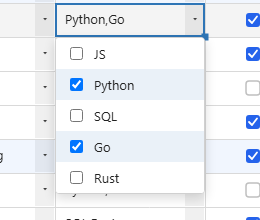
- Opening. Double-click, or press
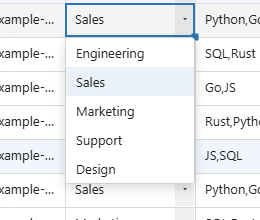
EnterorF2on the selected cell, or simply click a cell that is already selected. A column with an emptyoptionslist does not open an editor. - Dropdown.
↑/↓move the highlight,Enteror a click picks the entry, andEscapeor a click outside closes the list without changing the cell. - Multiselect. A click ticks or unticks an entry and keeps the list open.
Enter,Tabor a click outside commits the ticked values;Escapediscards them. The joiner iseditorOptions.delimiter(default','); set it if a value can contain a comma. - Checked automatically. A dropdown value that is not one of the options, or a multiselect value with a part that is not, is marked invalid without any
validationblock, so a typed or pasted stray value shows up. An empty value is accepted; addvalidation: { required: true }to reject it.
Button Columns (type: 'button')
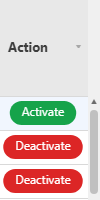
Renders the entire cell as a single clickable button. Activated by mouse click, touch tap, or Space/Enter/F2 after selecting the cell, and always works regardless of editableCols (since it’s an action trigger, not a data edit). Shows a pointer cursor on hover, and clicking it does not draw a cell-selection border (since it’s an action target, not a selected data cell). label/disabled/ variant all support either a fixed value or a (rowData, rowIndex) => value function; if the label function returns null/'', no button is drawn for that row.
Use setCellValue() alongside an action that actually changes another column’s value (e.g. toggling active/inactive); the example below toggles the active checkbox column via a button, and the button’s own label/color update immediately based on that value.
const grid = new JHGrid({
  container: '#grid',
  fetchMeta, fetchData,
  columnDefs: [
    { field: 'active', label: 'Active', type: 'checkbox' },
    {
      field: 'actions', label: 'Actions', width: 90,
      type: 'button',
      button: {
        label:   (row) => row?.active === 'false' ? 'Activate' : 'Deactivate',
        variant: (row) => row?.active === 'false' ? 'success' : 'danger',
        onClick(rowIndex, rowData) {
          const wasActive = rowData?.active !== 'false';
          grid.setCellValue(rowIndex, 'active', wasActive ? 'false' : 'true');
        },
      },
    },
  ],
});
Cell Buttons (columnDefs[].cellButton)
A small always-there click hotspot pinned to a cell’s right edge, whatever the column’s type - unlike type: 'button', which turns the whole cell into a button. The rest of the cell keeps behaving normally: it still renders its value, still selects, still edits.
{
  field: 'gas2', label: 'Gas 2', width: 100,
  cellButton: { icon: '+', onClick: (rowIndex, rowData, field) => openGasPicker(rowIndex) },
}
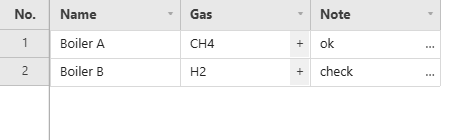
Both columns in the image, + with the default shaded band and … with style: 'plain':
new JHGrid({
  container: '#grid',
  data: [
    { name: 'Boiler A', gas: 'CH4', note: 'ok' },
    { name: 'Boiler B', gas: 'H2',  note: 'check' },
  ],
  editableCols: '*',
  columnDefs: [
    { field: 'name', label: 'Name' },
    {
      field: 'gas', label: 'Gas', width: 130,
      cellButton: { icon: '+', onClick: (rowIndex, rowData, field) => openGasPicker(rowIndex) },
    },
    {
      field: 'note', label: 'Note', width: 130,
      cellButton: { icon: '…', style: 'plain', onClick: (rowIndex) => openNote(rowIndex) },
    },
  ],
});
Giving it an icon is what makes the grid draw it — a shaded band with the glyph centred in it, the same shape CellRenderers.dropdown() gives its arrow, so a button column sits with the grid’s other affordances instead of looking like a one-off. The width it draws is the width it hit-tests, so the visible band and the clickable band cannot drift apart.
| Option | Default | Meaning |
|---|---|---|
onClick | (required) | (rowIndex, rowData, field) => void. Fires regardless of editableCols — it is an action, not an edit, and takes no part in undo/redo |
icon | – | The glyph to draw. Omit it and nothing is drawn while the hotspot stays clickable, for a host that would rather draw its own mark through cellDecorator |
width | 20 | Hotspot width in px, measured in from the cell’s right edge |
style | – | 'plain' drops the shaded band and draws the glyph alone |
iconSize / iconColor | 13 / header text colour | Glyph font size and fill |
A click inside the hotspot fires onClick and does not start an edit on the cell behind it; the cursor turns to a pointer there and nowhere else in the cell. An exception thrown by onClick is caught and logged rather than left to break the click handler.