Renderers & Custom Editors
When a built-in cell type is not enough: the bundled renderers, the three richer column types, and the two functions you write to take over drawing and editing.
Built-in Cell Renderers (CellRenderers)
Assign any of these to columnDefs[i].renderer (either the string key or a call to the factory directly; both are equivalent, but calling it yourself lets you pass options):
import { CellRenderers } from '@jh-grid/jhgrid-js';

columnDefs: [
  { field: 'progress', renderer: CellRenderers.progressBar({ max: 100, showLabel: true }) },
  { field: 'grade',    renderer: CellRenderers.badge({ colorMap: { A: { bg: '#dcfce7', fg: '#166534' } } }) },
]
| Renderer | Options | Description |
|---|---|---|
progressBar({ max?, showLabel? }) | max (default 100), showLabel (default true) | A filled bar sized to value / max, with an optional percentage label |
badge({ colorMap? }) | colorMap: Record<value, {bg?, fg?}> | A pill-shaped tag per distinct value, colored per colorMap (falls back to a neutral gray for values not listed) |
checkmark({ trueColor?, falseColor?, showFalse? }) | trueColor (default #16a34a), falseColor (default #94a3b8), showFalse (default true: draw a ✗ for a false-y value; false leaves it blank) | A ✓/✗ glyph instead of raw 'true'/'false' text. Counts as ✓: true, 1, 'true', 'Y', '예'; anything else is ✗ |
image({ fit?, radius?, size?, align? }) | fit: 'cover' \| 'contain' (default 'cover'), radius (corner radius, px), size (fixed box in px, see below), align: 'center' \| 'left' \| 'right' (default 'center', placement of a fixed-size box) | Renders the cell value as an image URL: see the type: 'image' note below for caching/decoding details |
number({ locale?, decimals?, rounding?, negative?, negativeColor? }) | BCP-47 locale, fixed decimals (default 0), rounding, negative, negativeColor (see Money columns) | Intl.NumberFormat-based number formatting |
date({ format?, locale?, dateStyle?, align? }) | format (default 'YYYY-MM-DD'): a YYYY/MM/DD/HH/mm/ss pattern, or 'locale' to format via Intl.DateTimeFormat; dateStyle: 'full' \| 'long' \| 'medium' \| 'short' for 'locale'; align (default 'left') | Date formatting: pattern-based by default, locale-aware when format: 'locale' |
currency({ locale?, currency?, decimals?, rounding?, negative?, negativeColor? }) | BCP-47 locale, ISO 4217 currency code (default 'KRW', so pass currency: 'USD' etc. explicitly), decimals overriding the currency’s own digit count, plus the same money options as number | Intl.NumberFormat-based currency formatting |
link({ color?, mutedColor?, underline?, align?, linked? }) | linked: true (default) or (rowData) => boolean; color (default #2563eb), mutedColor, underline (default true), align (default 'left') | Draws the cell as a link - coloured, underlined, ellipsized to fit. linked decides per row whether it looks (and so, paired with onCellDoubleClick, behaves) as one |
dropdown({ placeholder? }) | placeholder text for an empty value | Current value + a ▾ arrow, matching the dropdown editor’s affordance |
multiselect({ placeholder? }) | placeholder text for an empty selection | Selected values joined + a ▾ arrow |
checkbox({ checkedColor?, size? }) | box color (default #2563eb) and size in px (default 14) | A checked/unchecked box glyph. Counts as checked: true, 1, 'true', '1', 'Y', 'yes' |
radio({ options?, align?, checkedColor? }) | options as a dropdown takes them (or a function of the row), align (default 'left'), checkedColor (default #2563eb) | The options as circles inside the cell, one click away from being chosen; labels drop out and the circles close up as the column narrows - see Radio Columns |
button({ label?, disabled?, variant? }) | same shape as columnDefs[i].button (see Button Columns); defaults: label 'Button', variant 'primary' ('primary', 'success', 'danger' or 'neutral') | Renders the cell as a clickable button; this is what type: 'button' uses internally |
richtext() | none | Draws the <b>/<i>/<u>/<s> markup of a type: 'richtext' cell as one line of styled text; this is what that type uses internally |

The grid above, in full:
import { JHGrid, CellRenderers } from '@jh-grid/jhgrid-js';

const grid = new JHGrid({
  container: '#grid',
  data: [
    { name: 'Ada',   progress: 72, grade: 'A', active: 'true',  price: 1234.5,  joined: '2024-03-01', site: 'example.com' },
    { name: 'Grace', progress: 35, grade: 'B', active: 'false', price: 98,      joined: '2023-11-20', site: 'example.org' },
  ],
  columnDefs: [
    { field: 'name' },
    { field: 'progress', renderer: CellRenderers.progressBar({ showLabel: true }) },
    { field: 'grade',    renderer: CellRenderers.badge({ colorMap: {
        A: { bg: '#dcfce7', fg: '#166534' },
        B: { bg: '#dbeafe', fg: '#1e40af' },
        C: { bg: '#fef9c3', fg: '#854d0e' },
    } }) },
    { field: 'active',   renderer: CellRenderers.checkmark({ showFalse: true }) },
    { field: 'price',    align: 'right', renderer: CellRenderers.currency({ locale: 'en-US', currency: 'USD' }) },
    { field: 'joined',   renderer: CellRenderers.date({ format: 'YYYY-MM-DD' }) },
    { field: 'site',     renderer: CellRenderers.link({ linked: true }) },
  ],
});
A link cell only looks like a link. To make it act like one, handle the double-click yourself; linked can also be a function so that only some rows look (and behave) clickable:
new JHGrid({
  // ...
  columnDefs: [
    { field: 'site', renderer: CellRenderers.link({ linked: (row) => !!row?.site }) },
  ],
  onCellDoubleClick: (rowIndex, rowData, field) => {
    if (field === 'site' && rowData?.site) window.open('https://' + rowData.site, '_blank', 'noopener');
  },
});
locale on number/date/currency falls back to theme.locale (set via the top-level locale constructor option) when omitted, so most grids never need to pass it per-column.
Money Columns: Rounding and Negatives
number and currency take the same three options for an amount column, so a figure that has to match an accounting system does not need a renderer of your own.

import { JHGrid, CellRenderers } from '@jh-grid/jhgrid-js';

const grid = new JHGrid({
  container: '#grid',
  data: [
    { item: 'Licence',  amount: 2.5,     net: -1234.5,  won: 1234.56 },
    { item: 'Support',  amount: 3.5,     net: 5678.9,   won: -98.4 },
    { item: 'Training', amount: -1234.5, net: -0.5,     won: 0 },
  ],
  columnDefs: [
    { field: 'item' },
    { field: 'amount', label: 'Half-even',  renderer: CellRenderers.number({ decimals: 0, rounding: 'halfEven' }) },
    { field: 'net',    label: 'Net',        renderer: CellRenderers.number({ decimals: 0, negative: 'parens', negativeColor: '#ef4444' }) },
    { field: 'won',    label: 'Won',        renderer: CellRenderers.currency({ locale: 'ko-KR', currency: 'KRW', decimals: 2, negative: 'parens' }) },
  ],
});
| Option | Values | What it does |
|---|---|---|
rounding | 'ceil', 'floor', 'expand', 'trunc', 'halfCeil', 'halfFloor', 'halfExpand' (the default), 'halfEven', 'halfTrunc' | The Intl rounding mode used once decimals cuts the figure short. 'halfEven' is banker’s rounding: 2.5 draws as 2, 3.5 as 4 |
negative | 'minus' (default) or 'parens' | 'parens' writes -1,234 as (1,234), the accounting convention, for currency as well as number |
negativeColor | any CSS colour | Text colour for a value below zero. Positives keep theme.cellText |
decimals (on currency) | a number | Overrides the digit count the currency itself implies - KRW normally draws none, USD two |
rounding comes from Intl.NumberFormat v3, which is newer than the browser floor the grid supports. Where it is missing, the renderer writes one console warning and draws with the default 'halfExpand' rather than letting a money column round the wrong way in silence. An unknown mode, or an unknown negative value, throws as the renderer is built rather than per cell.
Rounding is drawing, not storing. The cell still holds what the host gave it or the user typed, so getEdits(), getChanges() and a CSV export carry the unrounded figure. Round at the save boundary with the column’s own parse when the stored value has to be rounded too.
Totals are not drawn through a renderer, and they are exact: the summary row adds a decimal column as an integer of its smallest unit, so a column of 0.1-type amounts totals to the figure your database computes rather than to 0.30000000000000004.
Clicking an already-selected dropdown/multiselect cell opens its editor immediately (no double-click needed); see Dropdown and Multiselect Columns.
Register your own under a string key with registerCellRenderer(name, factory) (and the editor counterpart, registerCellEditor), see the custom-editor example below for the matching factory shape. The factory is called once per column with the options you pass, and returns the function that draws one cell. args carries the cell’s box (x, y, w, h), value, rowData, rowIndex, colIndex, theme, padding and text().
args.text(str, opts) writes one line into the cell: it uses the column’s own alignment, centres the line vertically and clips it with an ellipsis at the cell edge, so a renderer that only puts text in a cell needs no coordinates at all. opts takes align, color, size, bold, font and padding. It draws only while the renderer runs; keeping it and calling it later does nothing.
import { JHGrid, registerCellRenderer } from '@jh-grid/jhgrid-js';

// 0-5 as stars. No x/y arithmetic: args.text() knows the cell it is in.
registerCellRenderer('stars', () => (ctx, { value, text }) => {
  const n = Math.max(0, Math.min(5, Math.round(Number(value) || 0)));
  text('★'.repeat(n) + '☆'.repeat(5 - n), { color: '#f59e0b', size: 15 });
});

new JHGrid({
  container: '#grid',
  data: [{ name: 'Sky', rating: 4 }, { name: 'Rose', rating: 2 }],
  columnDefs: [
    { field: 'name' },
    { field: 'rating', renderer: 'stars' },
  ],
});
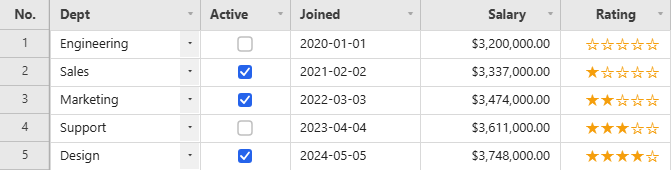
The same renderer runs on the live demo page’s Rating column.
For anything beyond a line of text, draw on ctx with the cell box:
import { JHGrid, registerCellRenderer } from '@jh-grid/jhgrid-js';

// A small colour swatch followed by the colour's text.
registerCellRenderer('swatch', ({ size = 12 } = {}) => (ctx, { x, y, w, h, value, theme, padding }) => {
  if (!value) return;
  ctx.fillStyle = String(value);
  ctx.fillRect(x + padding, y + (h - size) / 2, size, size);
  ctx.fillStyle    = theme.cellText;
  ctx.font         = `${theme.fontSize}px ${theme.fontFamily}`;
  ctx.textAlign    = 'left';
  ctx.textBaseline = 'middle';
  ctx.fillText(String(value), x + padding + size + 6, y + h / 2);
});

new JHGrid({
  container: '#grid',
  data: [{ name: 'Sky', color: '#38bdf8' }, { name: 'Rose', color: '#f43f5e' }],
  columnDefs: [
    { field: 'name' },
    { field: 'color', renderer: 'swatch' },   // or renderer: CellRenderers.swatch({ size: 14 })
  ],
});
A renderer runs for every visible cell on every frame, so keep it to plain canvas calls and do not create objects or DOM in it. Registering a name that a built-in already uses replaces the built-in and logs a warning.
Column Types: date / richtext / image, and Custom Editors/Renderers
columnDefs[i].type supports date/richtext/image in addition to checkbox/dropdown/button. When set, the matching editor (CellEditors) and display renderer (CellRenderers) are applied automatically. → Live example
columnDefs: [
  { field: 'dob',    type: 'date', editorOptions: { min: '1900-01-01', max: '2100-12-31' } },
  { field: 'notes',  type: 'richtext' },              // bold/italic/underline/strikethrough
  { field: 'avatar', type: 'image', renderer: CellRenderers.image({ fit: 'cover' }) },
],
type: 'date': a masked input in the column’s date pattern, or a native date input when itsformatis'locale', andCellRenderers.date()for display. See Date Columns.-
type: 'richtext': double-clicking a cell opens acontenteditableeditor with a bold/italic/ underline/strikethrough toolbar. The stored value is a sanitized HTML string made up only of<b>/<i>/<u>/<s>tags, and the grid draws it on the canvas as a single line (line breaks, lists, and block elements aren’t supported, to match the fixed row-height model). The stored value (whatgetEdits()/getRowData()return) keeps those tags; CSV export,printGrid()and copy-to-clipboard write the plain text with the tags removed.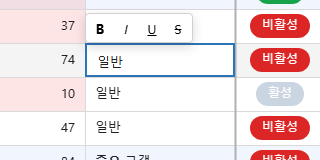
type: 'image': interprets the cell value as an image URL and draws it withCellRenderers.image()using its defaults. To pass options (fit,radius,size,align), setrenderer: CellRenderers.image({ ... })on the column; the string formrenderer: 'image'takes no options. Decoding is done viafetch()+createImageBitmap, downscaled to cover the cell’s display size while keeping the source aspect ratio, so memory usage stays low regardless of the source resolution, and the same URL is reused across grids via a page-wide LRU cache (50MB budget). Redraws automatically once the async load finishes.- Allowed URLs: only
http:,https:,blob:anddata:image/...(and relative paths) are loaded. Any other scheme (javascript:,file:,ftp:,data:text/html, …) is not requested and the cell shows the error tile. Because the grid fetches a cell’s URL as soon as the cell is drawn, and a same-origin URL is sent with the page’s cookies like a normal<img>, do not put user-supplied URLs in an image column unless your server treats such GET requests as safe. - Image size: by default the image fills the cell (minus padding), so it grows and shrinks with the column width and row height. Pass
sizetoCellRenderers.image()to keep it a fixed size instead (capped to the cell, vertically centered, horizontally placed byalign):size: 32is a 32x32 box;fitdecides how a non-square image sits in it ('contain'shows the whole image,'cover'crops).size: { width: 48, height: 32 }sets both sides, withfitapplied inside that box.size: { height: 32 }(or onlywidth) fixes one side and lets the other follow the image’s own aspect ratio, so non-square images are neither stretched nor letterboxed. A square placeholder is shown until the image loads.
{ field: 'avatar', type: 'image', renderer: CellRenderers.image({ size: { height: 28 }, radius: 4 }) }

The image above, in full. The 2:1 and 1:2 source images are never stretched, and only the first column changes size with the row height:
new JHGrid({
  container: '#grid',
  data: [
    { name: 'User 1', photo: '/img/u1-wide.png', avatar: '/img/u1-tall.png', banner: '/img/u1-wide.png', poster: '/img/u1-tall.png' },
    // ...
  ],
  rowHeight: 48,
  columnDefs: [
    { field: 'name' },
    { field: 'photo',  renderer: CellRenderers.image({ fit: 'contain' }) },                 // fills the cell
    { field: 'avatar', renderer: CellRenderers.image({ size: 32, fit: 'contain' }) },      // 32x32 box, whole image visible
    { field: 'banner', renderer: CellRenderers.image({ size: { height: 28 } }) },          // 28px tall, width follows the image
    { field: 'poster', renderer: CellRenderers.image({ size: { height: 28 } }) },
  ],
});
To build your own cell editor, assign a function to columnDefs[i].editor, the same way renderer accepts a function:
{ field: 'color', editor: (ctx) => {
    const input = document.createElement('input');
    input.type = 'color';
    input.value = ctx.initialValue || '#000000';
    ctx.cellBox({ el: input });   // positions it over the cell for you
    input.addEventListener('change', () => ctx.commit());
    return input; // any shape works as long as it has .value / .remove()
  } }
ctx carries row/col/field/rowData, position/size (x/y/colW/rowH), theme/i18n/ columnLabel, initialValue (always a string), and callbacks to notify the host grid: commit()/ cancel()/moveSel(dr, dc)/focusWrapper(). wrapper is the grid’s root element. insertLineBreak() re-opens a text editor with a line break at the caret (what Alt+Enter does), and suppressReopen() tells the grid not to open a dropdown-style editor again when the click that just closed it landed on the same cell. The return value only needs .value (a string) and .remove(), so you can either return an <input> directly (as above) or return an object shaped like CellEditors.dropdown()’s { get value() {...}, remove() {...} }.
Editor surfaces: ctx.cellBox() / ctx.popup() / ctx.done()
The example above positions its <input> by hand, which is fine for a control that covers exactly the cell. Anything larger - an option panel, a picker, a form - has to sit outside the cell, escape whatever overflow: hidden is between the grid and the page, stay put while the page scrolls, and close on the same keys and outside clicks as every other editor. ctx provides all of that, so a custom editor never computes a coordinate:
A complete one: a column that stores the chosen certificates as 'Crane,Forklift', edited in a panel of checkboxes under the cell.
{ field: 'certify', width: 200, editor: (ctx) => {
    ctx.cellBox();                                                  // accent border over the cell
    const panel = ctx.popup({ role: 'listbox', minWidth: 220 });    // anchored under the cell

    const chosen = new Set(String(ctx.initialValue ?? '').split(',').filter(Boolean));
    for (const name of ['Forklift', 'Crane', 'Welding']) {
      const row = document.createElement('label');
      row.style.cssText = 'display:flex;gap:8px;padding:6px 10px;cursor:pointer';
      const box = document.createElement('input');
      box.type = 'checkbox';
      box.checked = chosen.has(name);
      box.addEventListener('change', () => (box.checked ? chosen.add(name) : chosen.delete(name)));
      row.append(box, name);
      panel.append(row);
    }

    // Enter commits, Escape cancels, Tab commits and moves, a click outside commits.
    return ctx.done({ value: () => [...chosen].join(',') });
  } }
ctx.cellBox({ el, border = true, interactive }) → a box covering exactly the cell, carrying the same accent border the built-in editors draw. It lives inside the grid wrapper, so it tracks the grid on its own, and it is removed with the editor.
Pass el to place an element you already have — a native <input type="color">, say — instead of letting it make a <div>; that is what an editor whose control is its element wants, and it is how the example above positions its input. Either way the element fills the cell, as the built-in editors’ inputs do (clear its width/height afterwards if you want its natural size).
interactive decides whether the box receives clicks. It defaults to false for a <div> cellBox makes itself (its usual job is to mark the cell, not to catch anything) and to true when you pass el, since an element handed in is there to be typed in or clicked.
ctx.popup(opts) → an empty <div> anchored to the cell, mounted on <body> with position: fixed so no ancestor can clip it, and re-anchored as ancestors scroll or the window resizes. Options:
| Option | Default | Meaning |
|---|---|---|
placement | 'below' | 'below' / 'above' / 'over' the cell |
align | 'left' | which cell edge it lines up with: 'left' / 'right' / 'stretch' (cell width) |
minWidth | 'cell' | 'cell', a number of px, or null |
maxHeight | 240 | px, or null for unbounded. Scrolls past it |
flip | true | flip to the other side of the cell when the chosen one has no room, and clamp horizontally into the viewport |
chrome | true | apply the standard overlay background/border/shadow, matching the built-in panels |
role | – | ARIA role, e.g. 'listbox' |
ariaLabel | true | true for the grid’s standard “edit column, row n” label, a string for your own, false for none |
ctx.done(opts) → the { value, remove } object the grid commits from, with the keyboard and outside-click behaviour every built-in editor shares already wired: Enter commits, Escape cancels, Tab commits and moves one cell (Shift+Tab backwards), and a mousedown outside commits. It also tears down every surface the editor created, so there is nothing to clean up by hand.
| Option | Default | Meaning |
|---|---|---|
value | (required) | () => string (or a plain value), read once at commit |
outside | 'commit' | what a mousedown outside the editor does: 'commit' / 'cancel' / 'ignore'. The built-in single-choice dropdown uses 'cancel' |
keys | – | per-key override, e.g. { enter: false, escape: 'cancel' }. Each is 'commit', 'cancel', 'commit-and-move', or false to leave the key alone |
onKey | – | (e) => boolean, seen before the mapping above, for keys the editor handles itself (arrow navigation in a listbox, say). Return true to stop there. Torn down with the rest, so an editor never registers a keydown listener of its own |
onCommit / onCancel | – | run just before the grid is told, for editor-local bookkeeping |
The returned object also exposes commit() and cancel(), for an editor that closes itself from its own UI (an OK button, say).
These surfaces exist on the editor context only, and deliberately so. A canvas grid’s performance comes from not building DOM per cell; one edit session is alive at a time (starting another edit, scrolling the grid, or mousing down elsewhere all commit the current one first), so what they mount is bounded at one editor and its popups no matter how many rows are loaded. The renderer and
cellDecoratorcontexts draw on the canvas and have no DOM equivalent.
You can also register reusable editors/renderers by name, so multiple columns can reference them by string key:
import { registerCellEditor, registerCellRenderer, CellRenderers } from '@jh-grid/jhgrid-js';

registerCellEditor('color', (opts) => (ctx) => { /* same factory shape as above */ });
registerCellRenderer('color', () => (ctx, info) => { /* draw a color swatch on the canvas */ });

columnDefs: [{ field: 'favoriteColor', editor: 'color', renderer: 'color' }]