Selection
What the user has selected, and how to read or set it from code.
Methods documented here: clearRowSelection(), focusCell(), getHeaderCheckbox(), getSelectedRows(), getSelection(), setHeaderCheckbox(), setSelection(), startEditing(), stopEditing().
Row Selection (rowSelection) / Header Checkbox
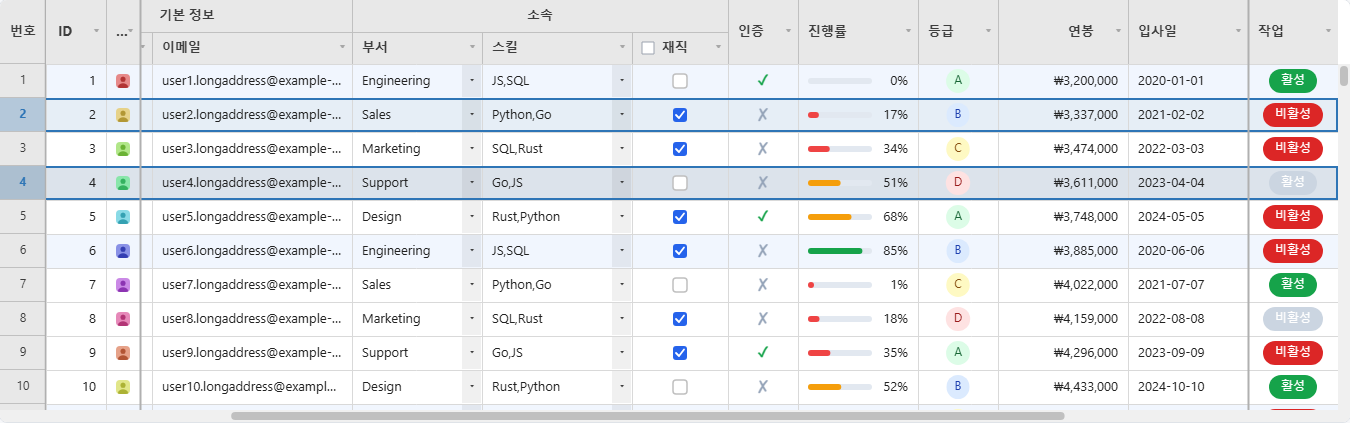
Setting rowSelection: 'single' | 'multi' lets you select rows by clicking the row-number cell (or Ctrl/Shift for multi-select). onRowSelect(rows) is called whenever the selection changes, and getSelectedRows() returns the currently selected row indices at any time. → Live example
How clicks behave:
'single': a click selects that row; clicking the selected row again clears it.'multi': a click selects only that row,Ctrl(orCmd) + click adds or removes a row, andShift+ click selects everything from the last clicked row to this one.- On the keyboard,
EnterorSpaceon a focused row number selects that row; see the Interaction Reference. - Clicking a cell clears the row selection unless
Ctrl/Shiftis held, and clicking a column header always does. WithshowRowNumbers: falsethere is no gutter to click, so clicking a cell selects its row instead. onRowSelectandgetSelectedRows()give row indices in ascending order. The selection is cleared by a filter, a sort,refresh()andreloadData(), since those change which row an index means.- With rows selected and no cell selected,
Ctrl+Ccopies the selected rows, every column, as tab-separated text.
const grid = new JHGrid({
  container: '#grid',
  fetchMeta, fetchData,
  rowSelection: 'multi',
  onRowSelect: (rows) => console.log('selected:', rows),
  columnDefs: [
    { field: 'name', label: 'Name', headerCheckbox: true },
    { field: 'age',  label: 'Age' },
  ],
});

grid.getSelectedRows();   // [2, 5, 9]
grid.clearRowSelection();
Setting columnDefs[i].headerCheckbox: true draws a checkbox in that column’s header, and clicking it calls onHeaderCheckboxChange(field, checked). The box only records a checked state and reports it: it does not select rows or change any cell by itself. What “checked” means is up to you, and the usual answer is “tick or untick every row of a checkbox column”, which setCellValues() does in one step:
const rows = Array.from({ length: 200 }, (_, i) => ({ name: 'User ' + (i + 1), active: 'false' }));

const grid = new JHGrid({
  container: '#grid',
  data: rows,
  editableCols: ['active'],
  columnDefs: [
    { field: 'name' },
    { field: 'active', type: 'checkbox', width: 90, headerCheckbox: true },
  ],
  onHeaderCheckboxChange: (field, checked) => {
    // One undo step and one redraw for all 200 rows.
    grid.setCellValues(rows.map((_, row) => ({ row, field, value: String(checked) })));
  },
});

setHeaderCheckbox(field, checked) / getHeaderCheckbox(field) read and write the state from code; setHeaderCheckbox() does not call onHeaderCheckboxChange. The state is part of getState() (headerCheckboxState).
Selection, Focus and Editing from Code (getSelection / setSelection / focusCell / startEditing / stopEditing)
Cell selection can be read and driven from code, and onCellClick reports clicks:
const grid = new JHGrid({
  container: '#grid',
  fetchMeta, fetchData,
  onCellClick: (rowIndex, rowData, field) => console.log('clicked', rowIndex, field),
});

grid.getSelection();                                  // { type: 'single', row: 3, col: 1 } | { type: 'range', r1, c1, r2, c2 } | null
grid.setSelection({ row: 3, col: 'name' });           // one cell; a column is an index or a field name
grid.setSelection({ r1: 2, c1: 0, r2: 6, c2: 'age' }); // a range
grid.setSelection(null);                              // clear

grid.focusCell(3, 'name');                            // select it and give the grid keyboard focus
if (grid.startEditing(3, 'name')) { /* the editor is open */ }
grid.stopEditing();                                   // commit; grid.stopEditing({ cancel: true }) discards
onCellClick(rowIndex, rowData, field)fires when the left button is pressed and released on the same cell, or when a cell is tapped, in addition to the built-in selection. A press that turns into a drag to another cell, a right-click and a click on a header or the row-number gutter do not count.rowDataisnullwhile the row is not loaded yet. On a pinned rowrowIndexis the encoded pinned-row index (see Pinned Rows).getSelection()returns a copy in the same shapeonSelectionChangereports, with columns as indexes. Whatever it returns can be passed straight tosetSelection().setSelection(selection, { scroll })scrolls the cell (a range’s top-left cell) into view unlessscrollisfalse. A row on another page switches to that page first. It firesonSelectionChange, commits an open editor, and leaves row selection (rowSelection) and keyboard focus alone.focusCell(row, col)issetSelection()on one cell plus keyboard focus, so the arrow keys,Enterand typing carry on from that cell.startEditing(row, col)selects the cell and opens its editor like a double-click. It returnsfalsewhen nothing opened: a read-only cell, or a checkbox/button column.stopEditing()commits the open editor (or discards it with{ cancel: true }) and does nothing if none is open.- A pinned row can be selected, focused and edited as a single cell (
rowis its encoded index). A range can only cover normal rows, and with pagination it cannot span two pages. - A row that does not exist or a malformed selection throws a
TypeError; an unknown field, an out-of-range column index or a range spanning two pages throws aRangeError.