Export & Print
CSV export and print preview both work off what the grid currently shows, filters and column order included.
Methods documented here: exportCsv(), printGrid().
Data Export (exportCsv / printGrid)
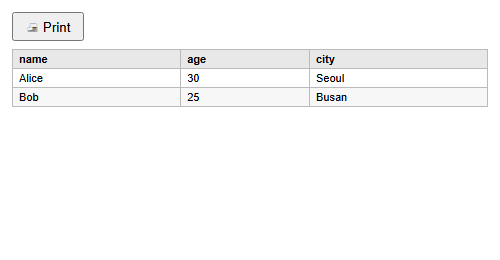
exportCsv(options) downloads the grid as a CSV file and returns a Promise that resolves once the download has been started. printGrid(options) opens a popup window with the grid as a plain HTML table and a Print button.
By default both cover only the rows loaded so far: the chunks the grid has fetched, plus rows you added. exportCsv({ full: true }) fetches every row that matches the current filter and sort instead, asking your fetchData for each page (a data array simply has all of them already). printGrid() has no full option, so it prints what has loaded.
A full export asks for several pages at once rather than waiting for one at a time, and uses fullScanPageSize as the page size when you set it. A million rows over twenty-two columns export in about five seconds; raising fullScanPageSize cuts the number of round trips your server sees. A column holding a data URI per row (an image column) is the one case that stays slow, because the file itself becomes hundreds of megabytes - hide that column before exporting if you do not need it.
exportCsv({ full: true }) is also the way to take every row somewhere else. Copying with Ctrl+C covers only the rows the grid is holding, since it has no values for the rest; see Interaction Reference.
exportCsv option | Default | Meaning |
|---|---|---|
filename | i18n.exportCsvFilename ('export.csv') | Name of the downloaded file |
delimiter | ',' | Field separator. Use ';' for spreadsheets set to a comma decimal mark, or '\t' for TSV |
includeHeaders | true | Start with a line of column labels |
bom | true | Prefix a UTF-8 byte order mark, so Excel reads Korean, Japanese or Chinese text correctly. false for a plain UTF-8 file |
full | false | Export every row that matches the filter and sort, not only loaded ones |
printGrid option | Default | Meaning |
|---|---|---|
title | '' | Heading above the table, and the popup’s title |
includeHeaders | true | Show the column labels |
// A CSV button. exportCsv is asynchronous when full: true, so await it.
csvBtn.addEventListener('click', async () => {
  csvBtn.disabled = true;
  try {
    await grid.exportCsv({ filename: 'users.csv', full: true });
  } finally {
    csvBtn.disabled = false;
  }
});

// A semicolon-separated file for a locale where Excel expects it.
grid.exportCsv({ filename: 'users-eu.csv', delimiter: ';' });

// Print from a click: the popup is blocked unless it starts from a user gesture.
printBtn.addEventListener('click', () => grid.printGrid({ title: 'User List' }));
What ends up in the file or the table:
- The columns you can see, in their current order, under their labels; hidden and deleted columns are left out. Rows follow the order on screen.
- The text the cells show: unsaved edits are included, and dates are written in the column’s
format. A rich-text cell is written without its tags. - Rows you removed with
deleteRow(i, { permanent: true })are left out; rows only marked for deletion are still on screen, so they are exported. - A value that begins with
=,+,-,@, a tab or a carriage return, and is not a plain number, gets a leading'in the CSV so a spreadsheet will not run it as a formula. Numbers such as-5are left alone. - Lines end with
\r\n. When only loaded rows are exported and the server has more, a console warning says how many were left out. printGrid()logspopup blockedand does nothing if the browser stops the popup.