Filtering & Sorting
Both run through the same grid state the data source sees, so a filter or a sort is one state change followed by one refetch.
Methods documented here: addSort(), clearFilters(), clearQuickFilter(), clearSorts(), clearSort(), getQuickFilter(), getSorts(), moveSort(), removeFilter(), removeSort(), setFilter(), setFilterValues(), setQuickFilter(), setSort(), setSorts().
Set Filter / Quick Filter
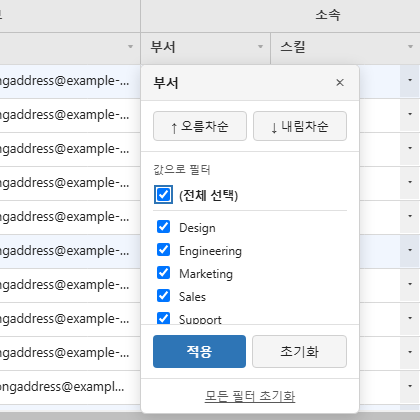
Every column header has a filter icon at its right edge (it turns amber while that column has a filter). Clicking it opens the filter / sort panel: two sort buttons, then the filter itself, then Apply, Reset (this column) and Reset all filters.
The filter is a checkbox list of the column’s distinct values, with a search box that narrows the list and a (Select all) row. The list is built from the rows loaded so far, so on a server-paged grid it only knows the pages it has fetched. It is offered while the column has at most 200 distinct values; past that the panel switches to the tag filter below. An empty value is listed as i18n.emptyCell.
grid.setFilterValues('status', ['active', 'pending']);
grid.setFilterValues('status', null); // clears the filter
The values are matched exactly, as text, so pass strings (setFilterValues('level', ['1', '2']) for a numeric column; other values are converted with String()). onFilter(filters) reports the result, and the same map is what a server-backed fetchData receives as state.filters.
Tag Filter (fetchFilterValues)
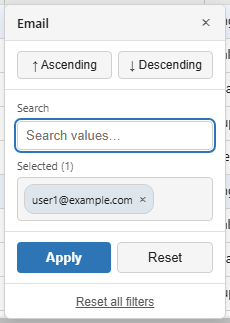
Above that 200-value cap the column’s values cannot be listed from the rows in memory, so the panel shows a tag picker instead of the checklist: the user types, picks from the suggestions, and each pick becomes a chip. Chips are combined with OR and applied as a string[], the same shape the checklist already sends, so fetchData, getState(), and onFilter need no changes.
Where the suggestions come from is what fetchFilterValues decides. Without it they are scanned out of the rows already loaded, and the list says so (“From loaded rows only”). With it, the callback answers for the whole column, which is what you want on a server-paged grid whose table is far larger than the cache. It receives the column and the typed text and returns the matching values, as strings, numbers or null (shown as an empty cell):
new JHGrid({
  container: '#grid',
  fetchMeta, fetchData,
  // Called as the user types, debounced. Bound it server-side where you can (LIMIT).
  fetchFilterValues: async (field, query) => {
    const res = await fetch(`/api/distinct?col=${encodeURIComponent(field)}&q=${encodeURIComponent(query)}&limit=50`);
    return res.json();          // e.g. ['Seoul', 'Busan', 'Incheon']
  },
  onFilter: (filters) => console.log(filters),   // { city: ['Seoul', 'Busan'] }
});
A callback that rejects is treated as “no matches”. The callback gets no state, so it cannot narrow its answer by the filters already applied to other columns.
The lookup is debounced (180 ms) and waits for two characters (filterValueMinChars), whether it runs fetchFilterValues or scans the loaded rows. A single character against a large column is the most expensive query this control can issue and the least selective answer it can get; below the threshold the panel says so and still offers the substring fallback, which needs no lookup at all. Set it to 1 for the pre-existing behaviour.
Return however many matched; the panel builds at most 50 rows regardless and reports the rest as “+N more, narrow the search”. A one-letter query against a large column would otherwise mean thousands of DOM nodes built on every keystroke, which is a freeze rather than a long list, and no 220px dropdown can show them anyway. A LIMIT on your side still saves the transfer.
Picking a value drops it into the tray, clears the box and leaves the caret there, so the next value starts with a fresh search. The list keeps the same height whether or not any chips have been collected yet; it is the tray below that gives way when the panel runs short of room, since chips are what you already chose rather than what you are reading.
A column that was once too large to enumerate keeps its search box for the life of the grid. The value scan only sees loaded rows, so a filter narrows them, and without this a column filtered down to a handful of rows would look small enough for a checklist and swap the control out from under whoever had just used the search to filter it.
Columns small enough to enumerate keep their checklist, which is more precise than searching.
If the typed text matches nothing the lookup knows about, the list still offers a contains “…” entry that falls back to today’s substring filter and arrives as a plain string. A column carries exact values or a substring, never both; the filter map holds one value per field and the two mean different things, so picking the fallback clears the tags and shows its own dashed chip.
Chips wrap and then scroll rather than growing the panel off-screen, and a value too long for the panel is ellipsized with the full text in its title. Nothing is applied until Apply: filtering is a server round trip, and committing per chip would cost one request per tag.
A global search term across all columns is handled via the quick filter. JHGrid doesn’t render its own toolbar, so build the search box UI in the host page and pass the value through this API. Every call reloads the data, so debounce it on a server-backed grid:
<input id="search" type="search" placeholder="Search all columns">
<div id="grid"></div>

<script type="module">
import { JHGrid } from '@jh-grid/jhgrid-js';

const grid = new JHGrid({ container: '#grid', data: rows });

let timer;
document.querySelector('#search').addEventListener('input', (e) => {
  clearTimeout(timer);
  timer = setTimeout(() => grid.setQuickFilter(e.target.value), 250);
});

grid.getQuickFilter();     // the current term, '' when none
grid.clearQuickFilter();   // same as setQuickFilter('')
</script>
The term is at most 1000 characters. What it searches is up to fetchData: it receives the term as state.quickFilter. For a data array, every value of a row is searched, including keys that have no column.
Field-Based Filter / Sort (setFilter / setSort)
Separately from setFilterValues() (the Set filter UI), you can also set an arbitrary filter condition on a single field directly from code.
grid.setFilter('status', 'active');   // substring match: rows whose 'status' contains 'active'
grid.removeFilter('status');          // clear just that field's filter
grid.clearFilters();                  // clear all filters, the sort and the quick filter

grid.setSort('age', 'desc');          // sort by 'age' descending (replaces any existing sort)
grid.removeSort('age');
grid.clearSort();
setSort(), and a plain click on the filter panel’s sort buttons, replace whatever sort was there. To sort by more than one column, use the methods in Multi-Column Sort or Shift+click the panel’s buttons. onSort(sorts) receives the whole list, [{ field, dir }, ...] in priority order, or null when there is no sort.
Two things to know before wiring these to buttons:
-
They ask before discarding edits. A filter or sort change reloads the rows, so an unsaved edit on a server row cannot keep pointing at the same record. When such an edit exists the grid shows a
window.confirm()withi18n.unsavedEditsWarning; cancelling leaves the filters, sort and edits as they were, and confirming clears the edits, delete marks, row heights and undo history. Edits on rows added withaddRow()and on pinned rows are kept. Save or collectgetEdits()first if you would rather not show the dialog. To answer the prompt with your own dialog instead of the browser’s, passconfirmUnsaved:new JHGrid({ // ... confirmUnsaved: (message) => myConfirmSync(message), // true discards the edits });It has to answer synchronously, because the call that asks (a header click,
setSort(),setFilter()) is synchronous up to that point, so a modal that resolves later does not fit here. For that case, keep the edits out of the way yourself: readgetEdits(), show your own dialog, and callsetSort()/setFilter()from its callback once nothing is unsaved. -
They validate their arguments. A field that is not a column throws a
RangeError, a non-stringfieldorvaluethrows aTypeError, and asetFilter()value over 1000 characters throws aRangeError. Passnullor''tosetFilter()to remove the filter.
// A "Reset view" button: drop every filter and sort, then start from the first page.
resetBtn.addEventListener('click', () => grid.clearFilters());

// A status tab bar
tabs.addEventListener('click', (e) => {
  const status = e.target.dataset.status;          // 'active' | 'pending' | ''
  if (status) grid.setFilterValues('status', [status]);
  else grid.removeFilter('status');
});
Multi-Column Sort (getSorts / setSorts / addSort / moveSort / clearSorts)
The grid never sorts rows itself: the whole key list goes to fetchMeta/fetchData as state.sorts, in priority order, and your code turns it into its own ORDER BY. These five methods hold and reorder that list.
await grid.setSorts([{ field: 'dept', dir: 'asc' }, { field: 'salary', dir: 'desc' }]);
grid.getSorts();              // [{ field: 'dept', dir: 'asc' }, { field: 'salary', dir: 'desc' }]

await grid.addSort('score', 'desc');   // appends a third key
await grid.addSort('dept', 'desc');    // 'dept' already sorts, so this re-points it and moves it last
await grid.moveSort('score', 0);       // make 'score' the primary key
await grid.clearSorts();               // sort by nothing
dir defaults to 'asc'. A field that is not a column (hidden columns are fine), a dir other than 'asc'/'desc', the same field twice, or a priority that is not a non-negative integer each throw.
setSorts, addSort, moveSort and clearSorts apply through setState(), so they ask the same unsaved-edit confirmation as any other sort change and return its Promise - await it when the next step needs the reloaded rows.
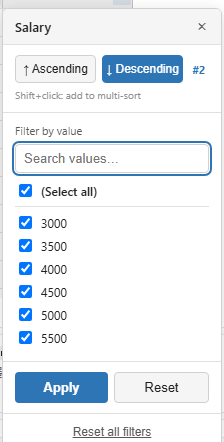
From the UI, Shift+click Asc or Desc in a header’s filter panel appends that column to the current sort instead of replacing it, and the panel shows each sorted column’s priority as #1, #2 and so on. The header itself shows the same number next to its sort arrow while more than one column sorts.
What fetchData receives:
new JHGrid({
  container: '#grid',
  fetchData: async (page, size, state) => {
    // state.sorts: [{ field: 'dept', dir: 'asc' }, { field: 'salary', dir: 'desc' }]
    const order = state.sorts.map((s) => `${s.field} ${s.dir}`).join(', ');
    const res = await fetch(`/api/rows?page=${page}&size=${size}&order=${encodeURIComponent(order)}`);
    return res.json();
  },
});
A host that only ever read state.sorts[0] keeps working, but it silently ignores the extra keys - read the whole array.